> ## Documentation Index
> Fetch the complete documentation index at: https://perplayerkit.com/llms.txt
> Use this file to discover all available pages before exploring further.
# Set up your kit room
> The kit room holds every item your players are allowed to put in a kit. Fill it with one command, or stock it yourself.
The kit room supplies items for players to build kits. It has five inventory pages by default and supports up to 99.
## Fill it with one command
```bash theme={null}
/perplayerkit autosetup
```
Fills the first five enabled pages and the bundled public kits with a ready-made crystal setup. Edit it afterwards like anything else.
Autosetup skips any page you have already saved, so it is safe to run on a server that is part way set up. Admins joining a server with an empty kit room are offered it in chat.
The rest of this page is for stocking it yourself.
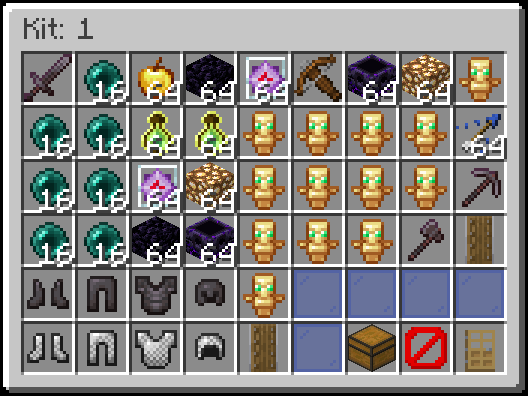
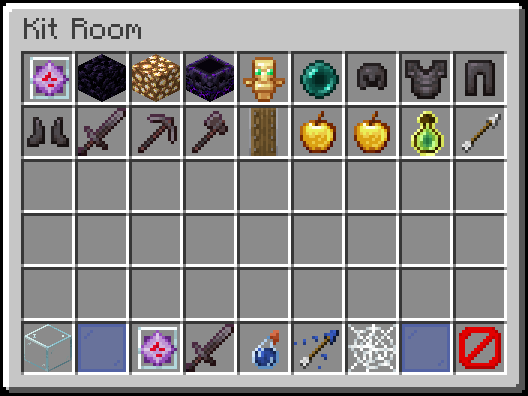 ## Stock it yourself
The account needs `perplayerkit.admin` or operator status.
Run `/kit`, then click the **nether star**.
Add the items players may use.
**Shift-right-click** the **barrier block** in the corner.
Fill and save each remaining page.
`/kitroom` does not open the editor. It only takes `save` and `load`.
Close the menu without shift-right-clicking the barrier and the page's items are lost.
## Add more pages
Set `kitroom.pages`, then restart. Up to seven page buttons fit directly in the bottom row.
With eight or more pages, arrows switch between groups of five page buttons.
```yaml config.yml theme={null}
kitroom:
pages: 8
items:
6:
name: Building
material: BRICKS
```
Extra pages start empty. Names and icons are optional; an unnamed page uses its number and a chest icon. The numbers under `items` match the page numbers.
Save each page before navigating away. Reducing `pages` hides extra pages without deleting their saved contents. Hidden pages do not contribute to the kit room item filter.
Autosetup fills only bundled pages. `autosetup reset confirm` resets all enabled pages, leaving extra enabled pages empty. Hidden pages remain saved.
## Ideas for each page
| Page | Put in it |
| ----------- | ---------------------------------------------------------- |
| Crystal PvP | End crystals, obsidian, glowstone, totems, netherite armor |
| Sword PvP | Swords, shields, full armor, golden apples, food |
| UHC | Golden apples, potions, bows, arrows, crafting materials |
| Axe combat | Axes, shields, heavy armor, gapples |
| Utility | Splash potions, wind charges, ender pearls, fireworks |
## Name the pages
```yaml config.yml theme={null}
kitroom:
items:
1:
name: Crystal
material: END_CRYSTAL
2:
name: Armory
material: NETHERITE_SWORD
3:
name: Potions
material: SPLASH_POTION
4:
name: Arrows
material: TIPPED_ARROW
5:
name: Utility
material: COBWEB
```
`material` is an uppercase [Bukkit material](https://hub.spigotmc.org/javadocs/bukkit/org/bukkit/Material.html) name. Restart the server after editing this. `name` accepts [MiniMessage](/settings/formatting) tags, such as `"Crystal"`.
## Lock kits to the kit room
By default a kit can hold any legal item. To restrict kits to kit room items:
```yaml config.yml theme={null}
item-filter:
enabled: true
kit-room-only: true
filter-imports: true
filter-saves: true
```
Removing a material from the kit room filters it out when a kit loads. Stored definitions remain intact.
## Turn kits off in some worlds
```yaml config.yml theme={null}
locations:
global:
mode: deny
entries: [spawn, lobby]
```
To restrict only the kit room, use `locations.kit-room`. See [Worlds and regions](/settings/locations).
## Copy a kit room to another server
```bash theme={null}
/kitroom save
/kitdata export kitroom my-kitroom
```
See [Export and import](/data/export-import).
## Next step
Players cannot use `/kit` until you grant them permission.
## Stock it yourself
The account needs `perplayerkit.admin` or operator status.
Run `/kit`, then click the **nether star**.
Add the items players may use.
**Shift-right-click** the **barrier block** in the corner.
Fill and save each remaining page.
`/kitroom` does not open the editor. It only takes `save` and `load`.
Close the menu without shift-right-clicking the barrier and the page's items are lost.
## Add more pages
Set `kitroom.pages`, then restart. Up to seven page buttons fit directly in the bottom row.
With eight or more pages, arrows switch between groups of five page buttons.
```yaml config.yml theme={null}
kitroom:
pages: 8
items:
6:
name: Building
material: BRICKS
```
Extra pages start empty. Names and icons are optional; an unnamed page uses its number and a chest icon. The numbers under `items` match the page numbers.
Save each page before navigating away. Reducing `pages` hides extra pages without deleting their saved contents. Hidden pages do not contribute to the kit room item filter.
Autosetup fills only bundled pages. `autosetup reset confirm` resets all enabled pages, leaving extra enabled pages empty. Hidden pages remain saved.
## Ideas for each page
| Page | Put in it |
| ----------- | ---------------------------------------------------------- |
| Crystal PvP | End crystals, obsidian, glowstone, totems, netherite armor |
| Sword PvP | Swords, shields, full armor, golden apples, food |
| UHC | Golden apples, potions, bows, arrows, crafting materials |
| Axe combat | Axes, shields, heavy armor, gapples |
| Utility | Splash potions, wind charges, ender pearls, fireworks |
## Name the pages
```yaml config.yml theme={null}
kitroom:
items:
1:
name: Crystal
material: END_CRYSTAL
2:
name: Armory
material: NETHERITE_SWORD
3:
name: Potions
material: SPLASH_POTION
4:
name: Arrows
material: TIPPED_ARROW
5:
name: Utility
material: COBWEB
```
`material` is an uppercase [Bukkit material](https://hub.spigotmc.org/javadocs/bukkit/org/bukkit/Material.html) name. Restart the server after editing this. `name` accepts [MiniMessage](/settings/formatting) tags, such as `"Crystal"`.
## Lock kits to the kit room
By default a kit can hold any legal item. To restrict kits to kit room items:
```yaml config.yml theme={null}
item-filter:
enabled: true
kit-room-only: true
filter-imports: true
filter-saves: true
```
Removing a material from the kit room filters it out when a kit loads. Stored definitions remain intact.
## Turn kits off in some worlds
```yaml config.yml theme={null}
locations:
global:
mode: deny
entries: [spawn, lobby]
```
To restrict only the kit room, use `locations.kit-room`. See [Worlds and regions](/settings/locations).
## Copy a kit room to another server
```bash theme={null}
/kitroom save
/kitdata export kitroom my-kitroom
```
See [Export and import](/data/export-import).
## Next step
Players cannot use `/kit` until you grant them permission.